Governance
The Governance module manages policies, controlled documents, exceptions, and change requests. Use it to control what rules are approved, who owns them, who acknowledged them, and which temporary deviations or controlled changes are allowed.
1. Background and Business Purpose
Governance turns policy intent into a controlled lifecycle. A policy is not only an uploaded file; it is a governed record with ownership, versioning, approval, publication, review dates, acknowledgement, exceptions, comments, evidence, and activity history.
Main business outcomes:
- maintain approved policy and document records
- control review, approval, publication, and acknowledgement
- manage temporary exceptions with rationale, expiry, and approval
- route controlled changes before implementation
- preserve evidence for audits and management review
- connect policy gaps to risks, issues, assessments, and controls
2. Core Records and Actors
| Item | Meaning |
|---|---|
| Policy / Document | Controlled record containing title, owner, version, category, status, review date, file, acknowledgement, and history. |
| Policy version | Current approved version or draft update under review. |
| Acknowledgement | User confirmation that a policy has been read or accepted. |
| Exception | Temporary approved deviation from a policy, control, or requirement. |
| Change request | Controlled request to change a policy, process, control, system, or operational setup. |
| Workflow | Approval route that governs review, rejection, publication, or closure. |
| Actor | Responsibility |
|---|---|
| Tenant administrator | Configures roles, workflows, templates, document categories, and permissions. |
| Policy owner | Creates and maintains the policy, review cadence, and content accuracy. |
| Reviewer | Reviews policy quality, scope, and alignment before approval. |
| Approver | Approves policies, exceptions, or change requests. |
| Exception requester | Requests a temporary deviation and provides rationale. |
| Change owner | Describes requested change, impact, and implementation plan. |
| Employees / target users | Acknowledge assigned policies when required. |
| Auditor | Reviews approvals, acknowledgements, exceptions, files, and activity trail. |
3. Policy List Page
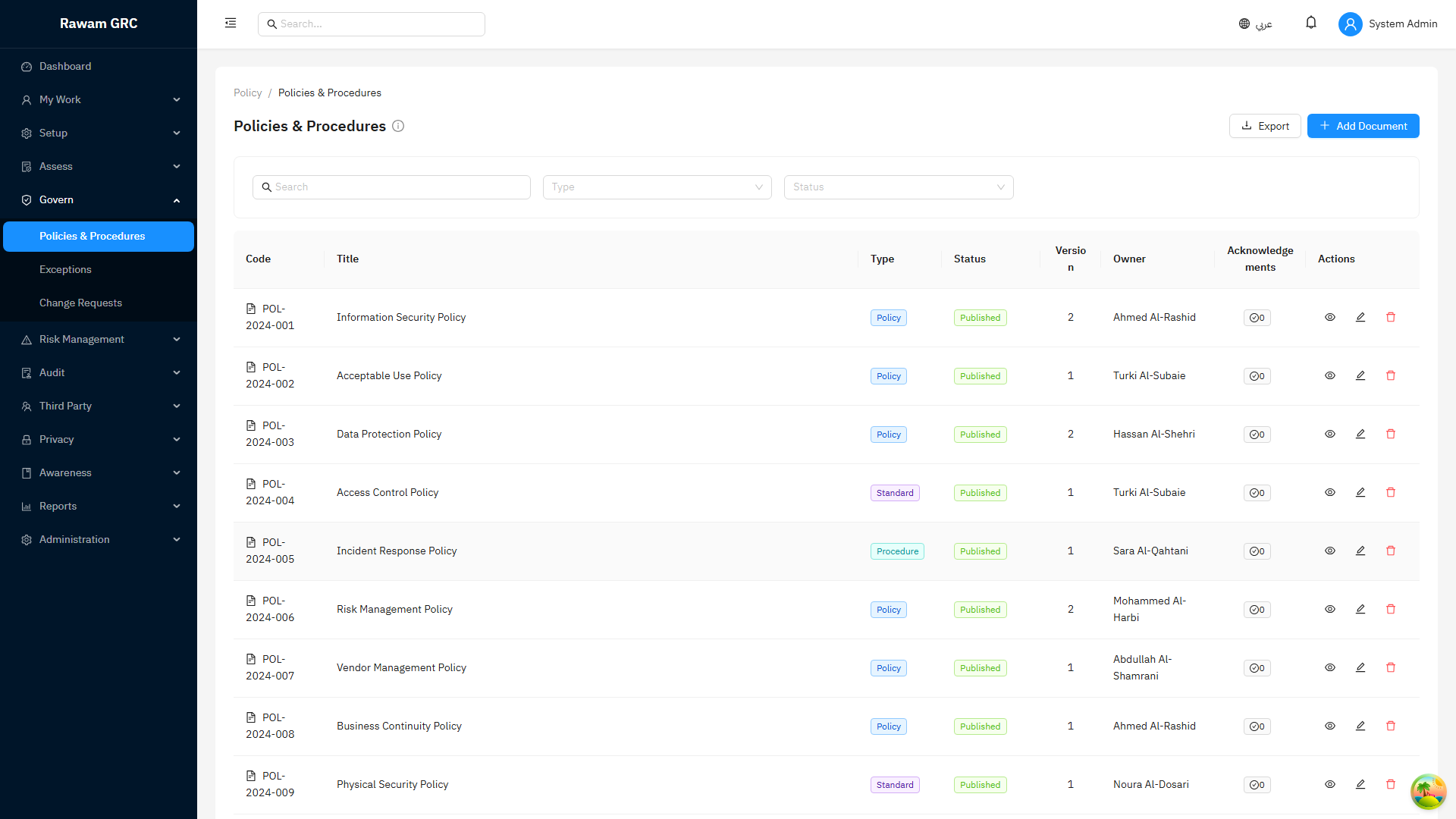
Use the Policies page as the controlled document register.
Main columns:
| Column | Purpose |
|---|---|
| Code | Unique policy/document reference. |
| Title | Policy or document name in the current language. |
| Category | Policy area, domain, or document type. |
| Version | Current document version. |
| Owner | Accountable user or function. |
| Status | Draft, In Review, Approved, Published, Archived, or Expired depending on lifecycle. |
| Review Date | Next scheduled review date. |
| Acknowledgement | Whether user acknowledgement is required or tracked. |
| Actions | Open, edit, submit, approve, publish, archive, or delete based on permissions and status. |
Useful filters:
- category
- status
- owner
- review due soon
- expired
- acknowledgement required
- search text
4. What to Click First: Policy Operating Flow
Use this flow for a new policy or a policy update.
Step 1: Create the Policy Record
- Open Governance.
- Open Policies.
- Click Create Policy.
- Enter title, category, owner, version, effective date, review date, and description.
- Upload the policy file or attach the controlled document.
- Choose whether acknowledgement is required.
- Save.
Result: the policy starts as Draft.
Step 2: Submit for Review
- Open the policy.
- Review metadata and attachment.
- Click Submit for Review.
- Add submission notes if required.
Result: the policy moves to In Review or starts the configured workflow.
Step 3: Review and Approve
- Reviewer opens the policy from task/workflow or policy detail.
- Reviewer checks scope, owner, version, file, review date, and acknowledgement setting.
- Reviewer approves or sends back with comments.
- Approver completes final approval if the workflow has multiple steps.
Result: the policy becomes Approved.
Step 4: Publish and Distribute
- Open the approved policy.
- Click Publish.
- Confirm target audience or acknowledgement requirement.
- Save/publish.
Result: the policy becomes Published and can be used as the active reference.
Step 5: Track Acknowledgement
- Open the policy detail page.
- Open the acknowledgement or activity area.
- Monitor who acknowledged and who is overdue.
- Follow up with users or departments that have not acknowledged.
Result: acknowledgement evidence is available for audit.
Step 6: Review, Update, or Archive
- Use the review-date filter to find policies due for review.
- Open the policy.
- Create a new draft/update if content changes.
- Archive obsolete policies after replacement or retirement.
Result: the document register remains current.
5. Policy Lifecycle and Statuses
| Status | Meaning | Typical Next Action |
|---|---|---|
| Draft | Policy is being prepared and is not approved. | Submit for review. |
| In Review | Policy is under review or workflow approval. | Approve or send back. |
| Approved | Policy has passed approval but may not be published yet. | Publish. |
| Published | Policy is active and available for use/acknowledgement. | Track acknowledgement and review date. |
| Expired | Review/effective period has passed. | Review, update, or archive. |
| Archived | Policy is retired and retained for history. | Read-only reference. |
Lifecycle controls:
- Draft policies should not be treated as active requirements.
- Published policies should be the primary reference for assessments and audits.
- Expired policies require owner review before they are used as current evidence.
- Archived policies should not be selected as current control evidence unless used for historical review.
6. Policy Detail Layout and Tabs
| Tab / Area | Purpose |
|---|---|
| Details | Title, description, category, owner, version, status, effective date, review date, and acknowledgement setting. |
| Files | Controlled document file and supporting attachments. |
| Workflow | Current approval step, decision actions, and workflow status. |
| Comments | Review discussion and policy-owner notes. |
| Activity | Audit trail of create, update, submit, approve, publish, archive, and acknowledgement events. |
| Acknowledgements | Users or groups required to acknowledge and their completion status. |
| Exceptions | Exceptions linked to the policy. |
| Related Items | Linked risks, issues, controls, assessments, or change requests where available. |
7. Exceptions
Exceptions are temporary approved deviations from a policy, control, or requirement. They should never be treated as permanent permission.
Exception Fields
| Field | Meaning |
|---|---|
| Policy / Control | The requirement being bypassed or adjusted. |
| Requester | Person requesting the exception. |
| Owner | Person accountable for managing the exception. |
| Business Rationale | Why the exception is needed. |
| Risk Impact | What exposure the exception creates. |
| Compensating Controls | Controls used to reduce the exposure while the exception is active. |
| Start / Expiry Date | Validity period. |
| Status | Draft, Submitted, Approved, Rejected, Expired, or Closed. |
Exception Flow
- Open Exceptions.
- Click Create Exception.
- Select policy/control and requester.
- Enter rationale, risk impact, compensating controls, and expiry date.
- Submit for approval.
- Approver reviews risk and compensating controls.
- Approver approves, rejects, or requests changes.
- Monitor expiry and close when no longer needed.
Important rules:
- Exceptions must have an expiry date.
- High-risk exceptions should be linked to a risk record.
- If compensating controls are weak, create an issue or treatment action.
- Expired exceptions should be closed or renewed through approval, not ignored.
8. Change Requests
Change requests manage controlled changes that may affect policies, controls, systems, risks, or operations.
Typical use cases:
- policy content change
- control design change
- process change
- system or configuration change affecting compliance
- change required by audit finding, incident, exception, or risk treatment
Change request fields:
| Field | Meaning |
|---|---|
| Change Title | Summary of the requested change. |
| Change Type | Policy, process, control, system, operational, or other. |
| Requester / Owner | Who requested and who owns execution. |
| Business Reason | Why the change is needed. |
| Impact Assessment | Expected impact on compliance, risk, operations, users, or evidence. |
| Implementation Plan | How the change will be executed. |
| Target Date | Planned completion date. |
| Status | Draft, Submitted, Approved, In Progress, Completed, Rejected, or Closed. |
Recommended flow:
- Create the change request.
- Document reason and impact.
- Link related policy, risk, issue, assessment, or incident.
- Submit for review.
- Approver validates impact and approves or rejects.
- Owner implements and records completion evidence.
- Close the change request.
9. Cross-Module Behavior
| Related Module | Overlap |
|---|---|
| Compliance and Assessments | Policies and controls can be evidence for assessments. Policy gaps or expired policies can become findings. |
| Risk Management | Exceptions and policy gaps can create or update risks. High-risk exceptions should be linked to risk treatment or acceptance. |
| Issues and Actions | Policy review gaps, overdue acknowledgement, failed controls, and weak exceptions can become corrective issues. |
| Audit | Auditors review policy status, approvals, versions, acknowledgement, and exceptions as evidence. |
| Training / Awareness | Published policies can require acknowledgement or awareness campaigns. |
| Files | Policy files and supporting evidence are controlled attachments. |
| Workflows | Reviews, approvals, exceptions, and changes can be governed by workflow steps. |
| Reports | Policy status, overdue reviews, acknowledgements, and exceptions support management reporting. |
10. Related Pages
| Related Page | Why It Matters |
|---|---|
| Compliance and Assessments | Policies and controls define what assessors test and what evidence they request. |
| Risk Management | Policy exceptions and change requests can affect control effectiveness and residual risk. |
| Operations | Policy gaps, changes, and exceptions often create issues or actions. |
| Audit Management | Published policies, approvals, exceptions, and acknowledgements support audit evidence. |
| Reports and Analytics | Policy review dates, acknowledgements, exceptions, and overdue approvals feed management reporting. |
| Workflow and Status Reference | Use this to understand policy approval, exception approval, and change request states. |
11. Before You Start, Reporting Impact, and Common Mistakes
Before publishing policies, confirm policy owners, approvers, review frequency, target audience, acknowledgement rules, exception approvers, and version naming. A policy should not be treated as active until it is approved, published, and assigned to the right audience.
Records that change reports and KPIs:
| Record or Field | Reporting Impact |
|---|---|
| Policy status | Determines whether the policy is draft, pending, published, archived, or overdue. |
| Review date | Drives overdue policy review reporting. |
| Acknowledgement assignment | Changes acknowledgement completion and overdue counts. |
| Exception status and expiry | Changes exception risk and expiry alerts. |
| Change request status | Shows pending governance changes and approval delays. |
Common mistakes:
- Uploading a file without setting owner, review date, version, and audience.
- Publishing a policy before approval evidence is complete.
- Leaving expired exceptions open.
- Treating acknowledgement percentage as policy effectiveness.
- Not linking policies to related controls, risks, or exceptions where relevant.
Use this module page when training policy owners on create, submit, approve, publish, and acknowledgement tracking. Screenshots and operating guidance should stay with the module rather than a separate screenshot menu.
12. Administrator Checklist
- Define policy categories before creating many records.
- Assign every policy to an accountable owner.
- Require review dates for active policies.
- Use workflow approval for high-impact policies and exceptions.
- Do not publish policies without current file/version.
- Monitor expired policies and exceptions.
- Link high-risk exceptions to Risk Management.
- Use issues for overdue acknowledgement or policy remediation work.
- Keep archived policies read-only for historical evidence.
13. Screenshots
Policies
Settings and Templates Context