Assessment Playbooks
Use these playbooks when you are working inside the Compliance and Assessments module. They keep the steps, screenshots, questions, and cross-module impact close to the module instead of forcing administrators into a separate process menu.
Run an Assessment from Start to Closure
Use this when a compliance manager creates an assessment and control owners must complete control responses.
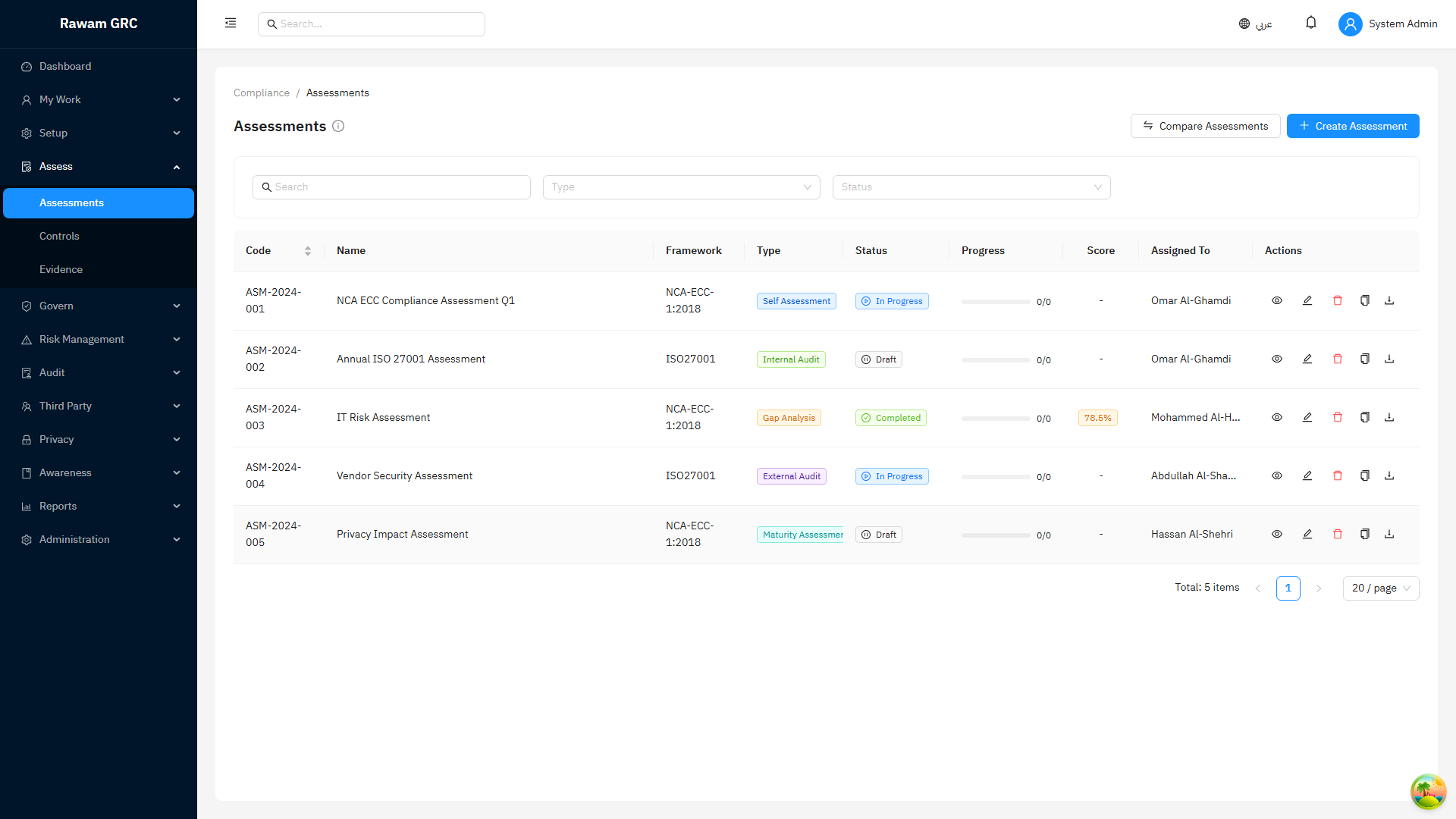
- Open Compliance and Assessments.
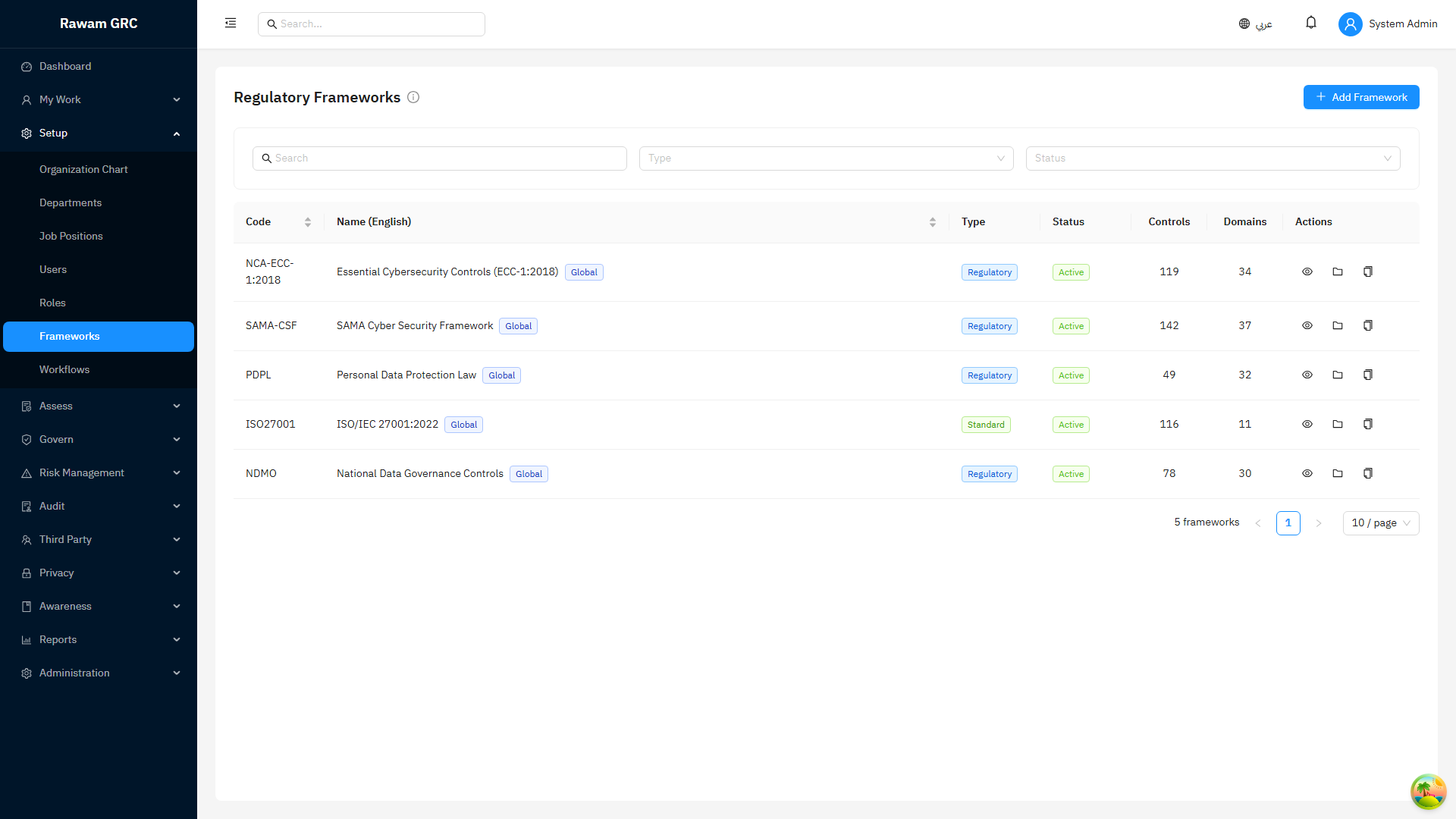
- Confirm the framework is active and the controls are in scope.
- Click Create Assessment.
- Select the framework, assessment type, owner, planned dates, and recurrence if needed.
- Save the assessment.
- Open the assessment and click Start if it is still Draft.
- Open the Controls tab.
- Assign controls to owners by selected controls or domain.
- Ask owners to update status, findings, recommendations, maturity when applicable, and evidence.
- Review all Non-Compliant and Partially Compliant controls.
- Create issues for concrete remediation work.
- Review auto-created compliance risks for Non-Compliant controls.
- Submit the assessment for review.
- Reviewer approves or sends it back.
- Close or retain the assessment according to the assessment workflow.
Expected result: assessment score, progress, evidence, findings, issues, risks, comments, activity, and approval history are traceable.
Convert a Failed Control into Follow-Up Work
Use this when a control response is Non-Compliant or Partially Compliant.
| Situation | Correct Follow-Up |
|---|---|
| There is a concrete corrective task | Create an issue. |
| There is exposure or uncertainty | Create or review a risk. |
| The gap was found during audit | Link or create an audit finding. |
| The organization accepts the gap temporarily | Record acceptance or exception according to policy. |
Recommended sequence:
- Open the failed assessment control.
- Confirm the finding and recommendation are clear.
- Check whether evidence is missing, weak, expired, or contradicted.
- Create an issue when remediation has a known owner and due date.
- Review generated compliance risks for Non-Compliant controls.
- Link existing risks when the failed control affects residual exposure.
- Do not report closure until the follow-up record has owner, due date, evidence expectation, and status.
Audit Finding to Targeted Reassessment
Use this when an auditor creates a finding against an exact assessment control.
- Auditor links the audit to the source assessment.
- Auditor links the finding to the exact failed assessment control.
- Material findings must be linked to an issue or risk.
- Remediation owner uploads evidence and submits the finding for verification.
- Auditor verifies the remediation.
- The platform marks the linked assessment control as requiring reassessment.
- The control status is reset to Not Assessed.
- A targeted reassessment due date is set.
- If the parent assessment was Completed or Closed, it is reopened to In Progress.
- Control owner reassesses only the affected control and uploads updated evidence.
- Saving the reassessment clears the reassessment flag.
- Linked risks, issues, or treatment actions can then be updated or closed.
This is the preferred enterprise flow. Do not create a full new assessment when only one verified audit finding requires retesting.
Screenshots
Assessment List
Framework Source
FAQ
| Question | Answer |
|---|---|
| Does progress mean compliance? | No. Progress means controls have responses. Score reflects compliance. |
| Can a completed assessment be edited? | Normally no. A verified audit finding can reopen only the affected control for targeted reassessment. |
| Should every failed control create a risk? | Not always. Use issues for known corrective work and risks for exposure or uncertainty. |
| Should audit remediation create a new assessment? | No, use targeted reassessment unless the business wants a full new cycle. |
| When can linked risk be closed? | After remediation evidence, auditor verification where applicable, and reassessment support the corrected control state. |