Screenshots and Visual Walkthroughs
Use this guide when you need a visual path through the most common administrator tasks. The screenshots show the main page areas; always confirm the exact record, owner, dates, and status before saving changes.
1. Start from the Dashboard
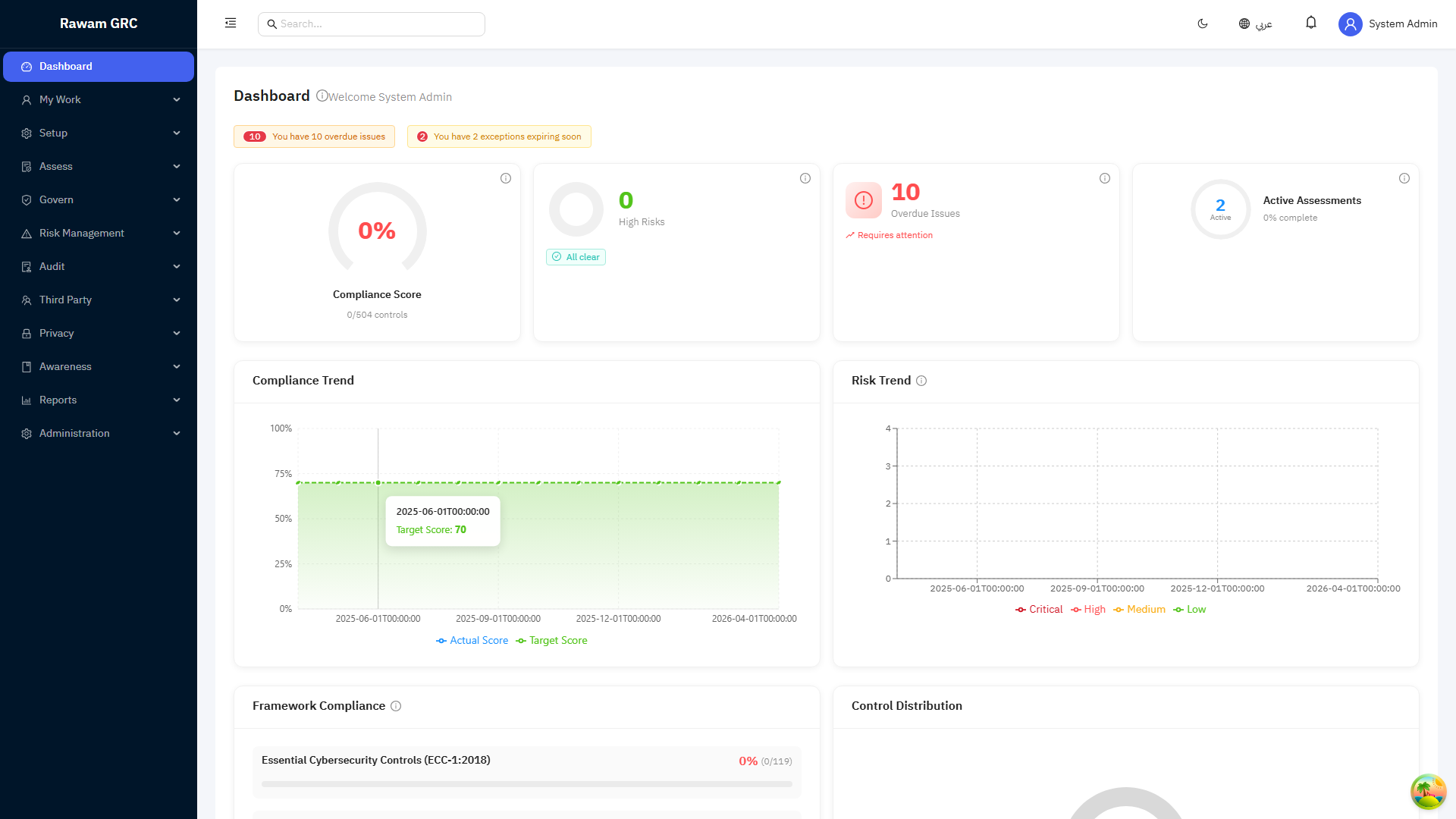
Use the dashboard as the daily triage page.
- Review alert cards for critical risks, overdue issues, pending approvals, and expiring exceptions.
- Open the related module from the card or navigation.
- Confirm whether the item has an owner, due date, and next action.
- Escalate items that are critical, overdue, or blocked.
- Return to the dashboard after updates to confirm the status changed as expected.
2. Review Compliance Assessments
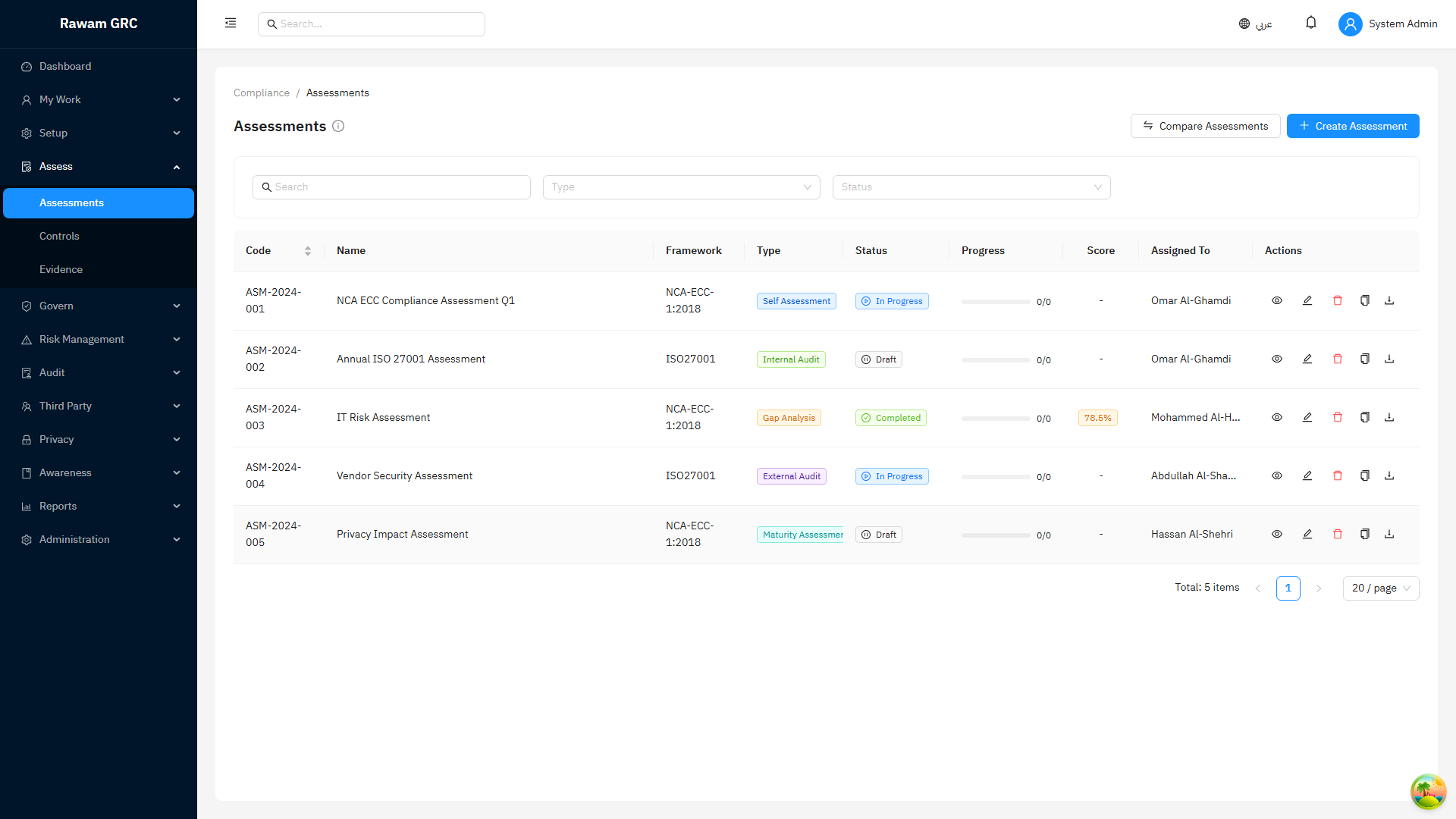
Use the assessments page to monitor control responses, evidence, and review progress.
- Filter by assessment status, owner, framework, or due date.
- Open an assessment that is overdue, in progress, or pending review.
- Check control responses and evidence quality.
- Return weak responses to the owner when evidence does not support the answer.
- Convert non-compliance into a risk, issue, exception, or finding when follow-up is required.
- Close the assessment only after required review and follow-up decisions are documented.
3. Review Framework Coverage
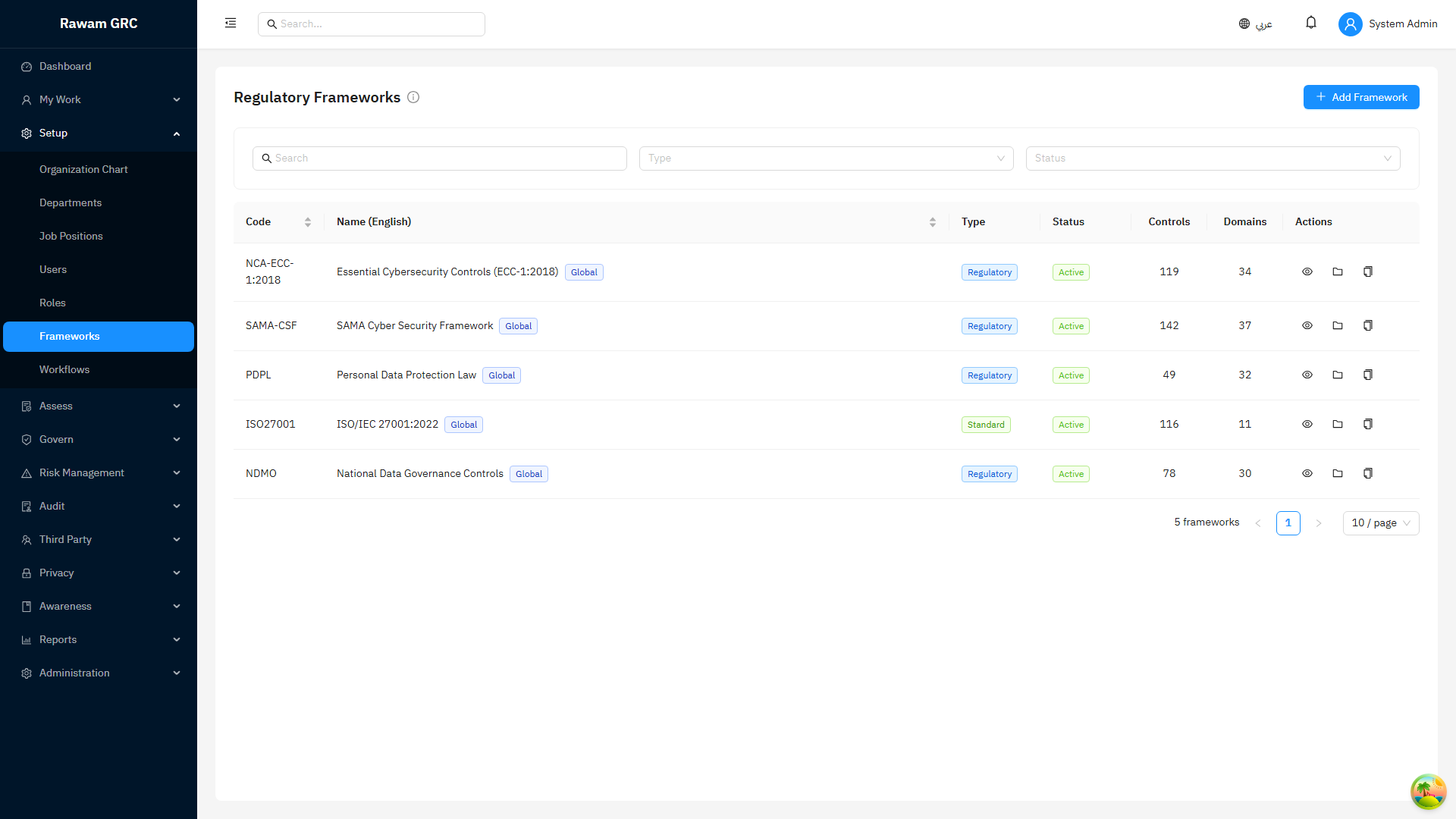
Use frameworks to understand which obligations and controls are in scope.
- Open the relevant framework.
- Review domains, requirements, and mapped controls.
- Confirm whether the framework is active and current.
- Use framework reporting to identify low-compliance domains.
- Start or update assessments when coverage is incomplete.
4. Manage Risk Register Items
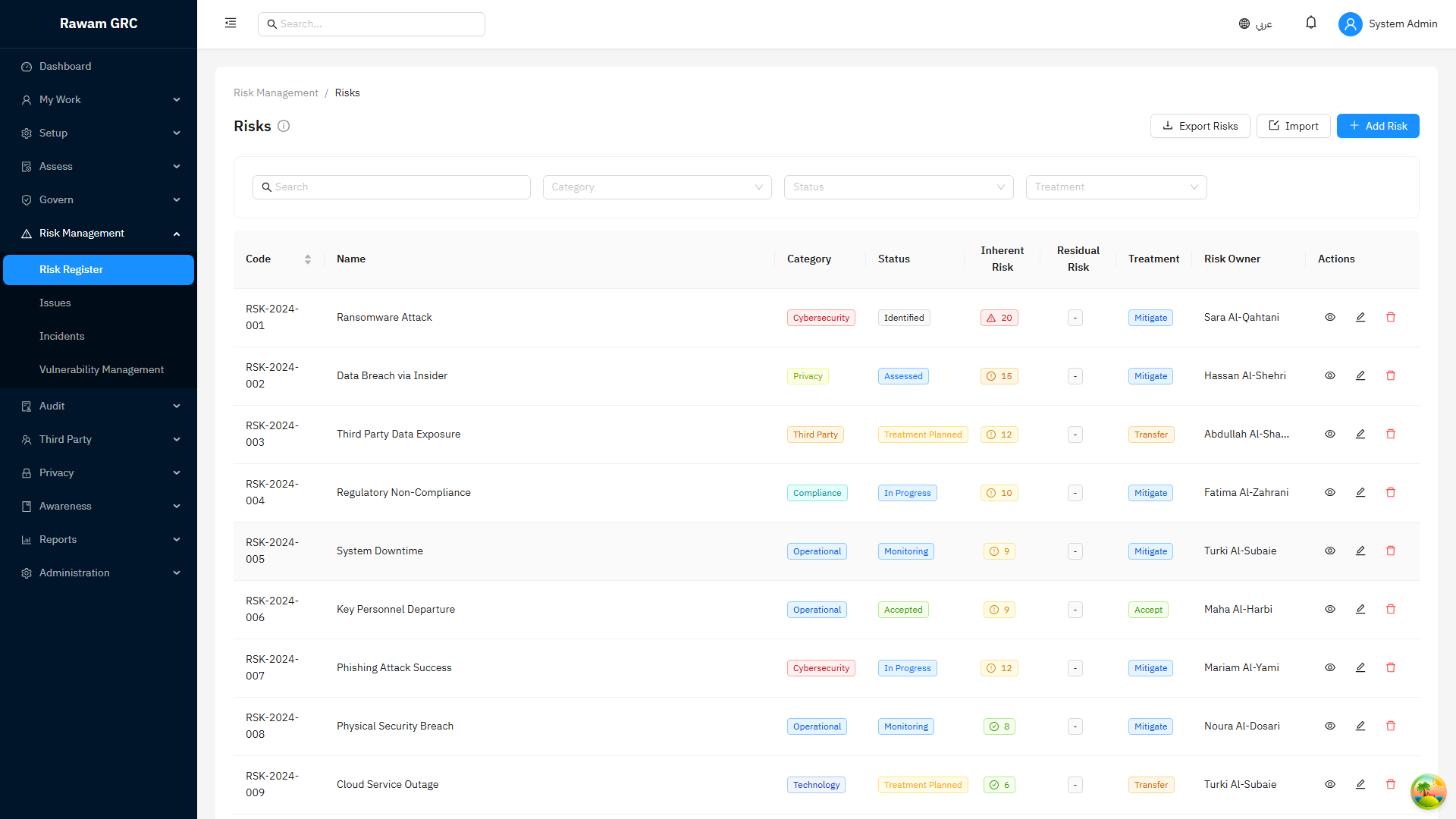
Use the risk register to manage risk ownership, scoring, treatment, and review.
- Filter by residual rating, owner, status, category, or overdue review.
- Open high and critical risks first.
- Check inherent score, residual score, treatment decision, owner, and review date.
- Confirm whether linked controls, assets, vendors, or issues explain the risk context.
- Update treatment progress or create follow-up issues.
- Do not accept or close a risk without documented justification.
5. Publish and Monitor Policies
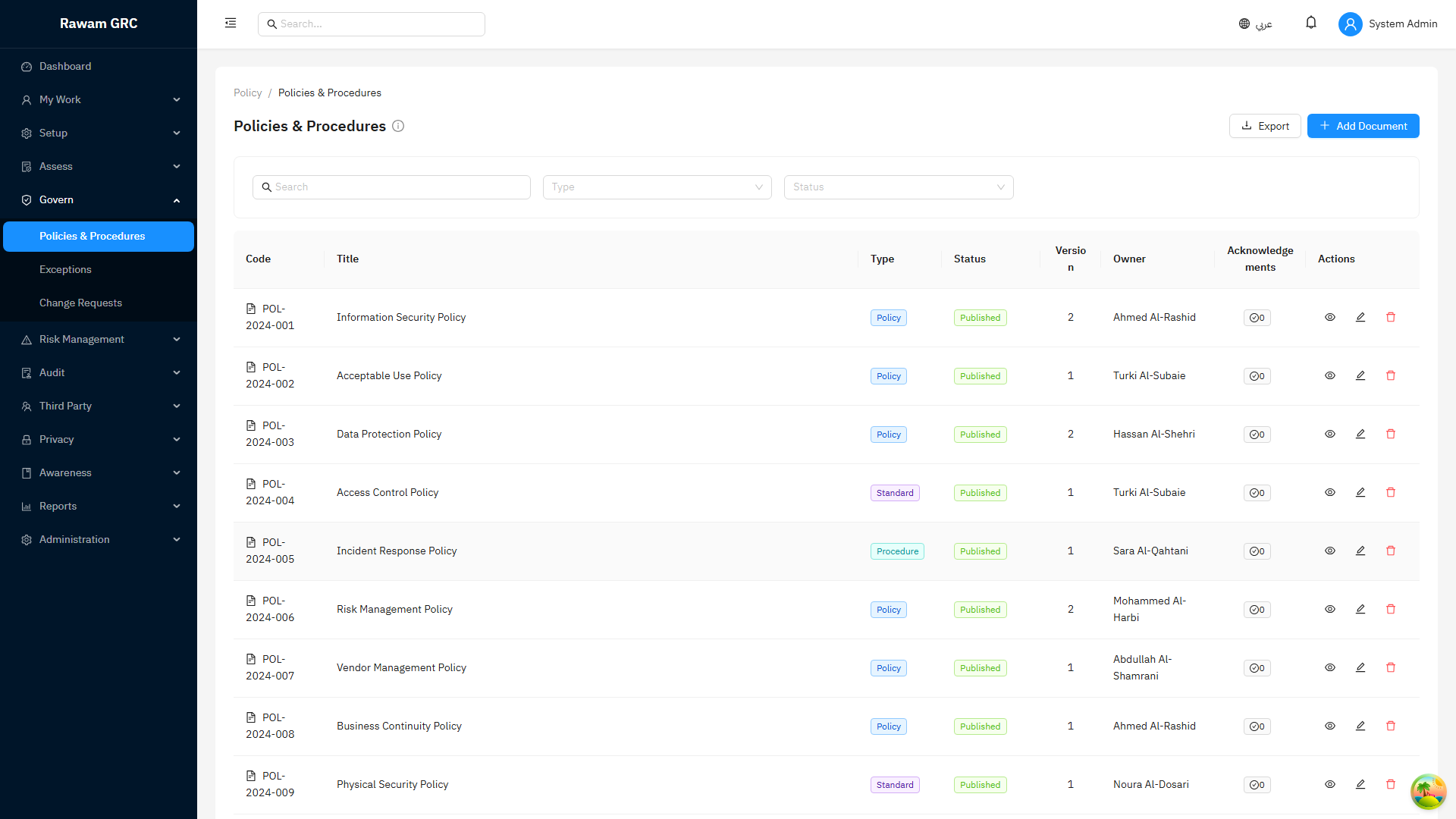
Use the policies page to manage policy lifecycle and acknowledgements.
- Review draft, pending approval, published, and expired policies.
- Open the policy and confirm owner, version, effective date, review date, and audience.
- Submit for approval when content and attachments are ready.
- Publish only after approval.
- Monitor acknowledgement completion for the target audience.
- Create reminders or follow-up actions for overdue acknowledgements.
6. Prepare Audit Evidence
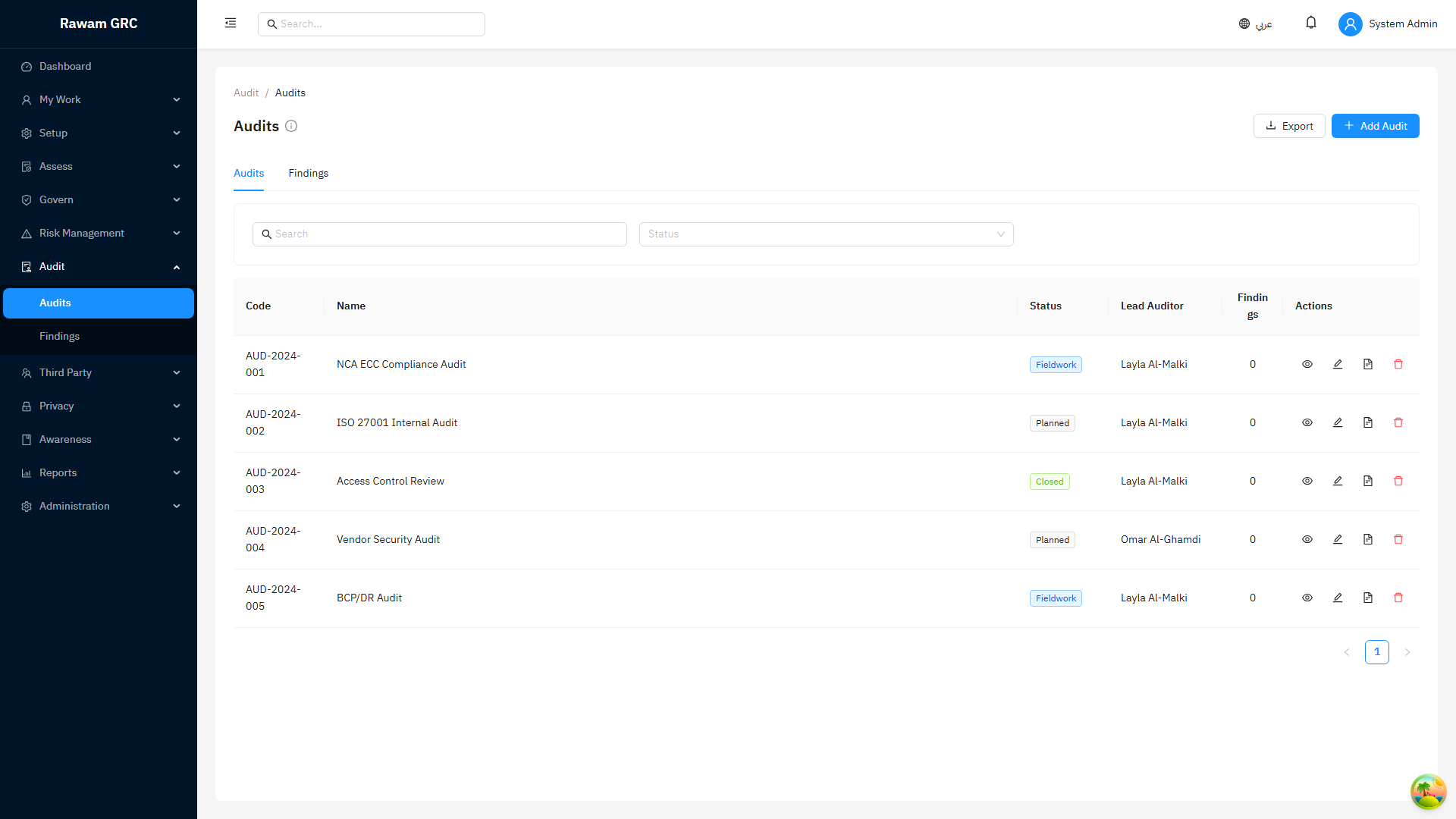
Use audit pages to manage audit scope, findings, evidence, and closure.
- Open the audit or finding.
- Confirm scope, owner, due date, severity, and status.
- Review linked evidence and remediation notes.
- Return weak evidence to the owner with a clear request.
- Submit findings for verification when remediation evidence is ready; material findings should be linked to an issue or risk, and verified assessment-control findings trigger targeted reassessment.
- Export the relevant report or evidence pack when ready for review.
7. Monitor Vendors and Third-Party Risk
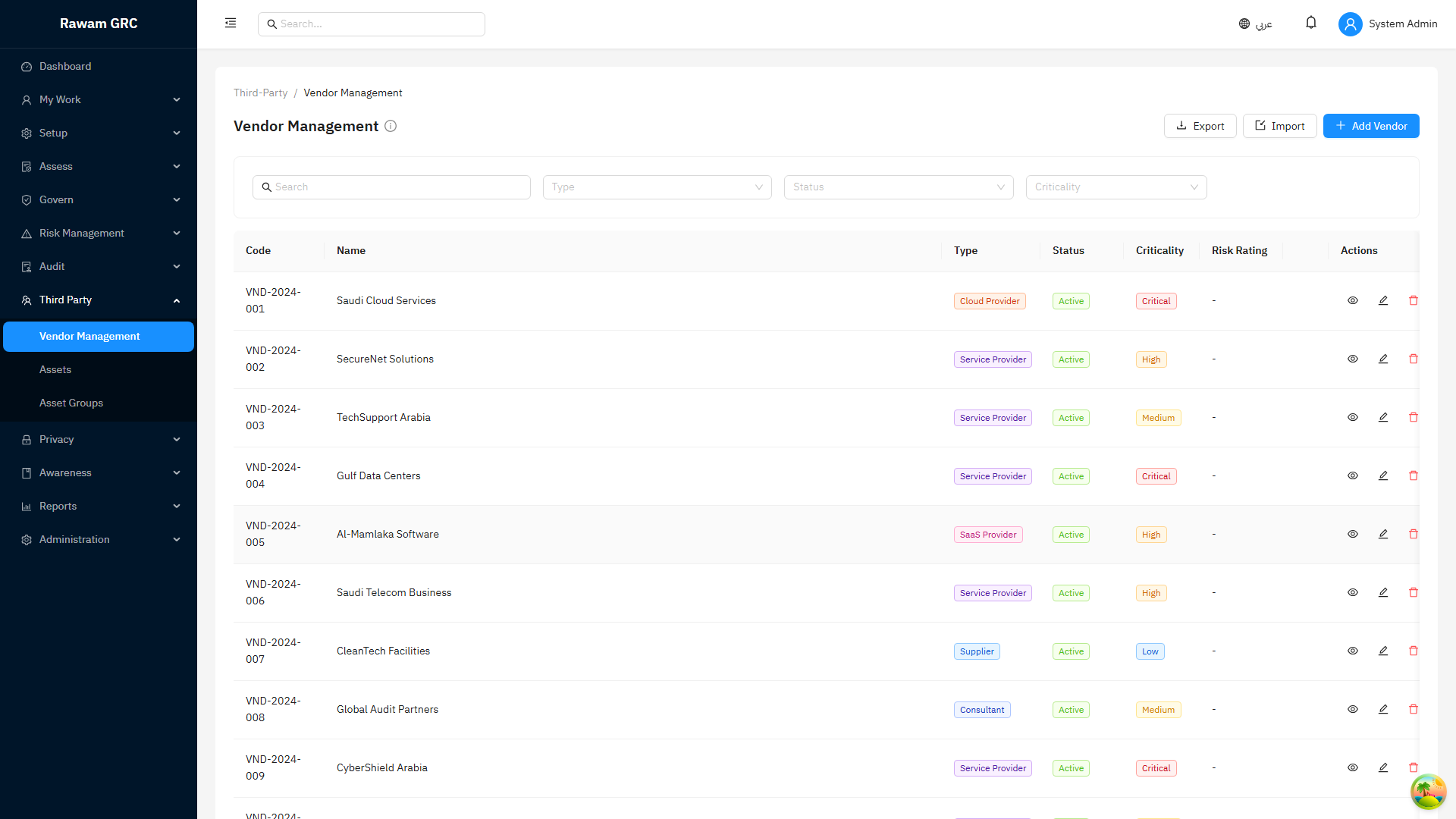
Use vendors to manage third-party ownership and risk.
- Filter vendors by criticality, status, owner, or review date.
- Open high-criticality vendors first.
- Confirm service description, owner, risk rating, assessment status, and next review date.
- Link risks, findings, or issues when vendor exposure requires follow-up.
- Update review status after assessment or remediation.
8. Maintain Assets
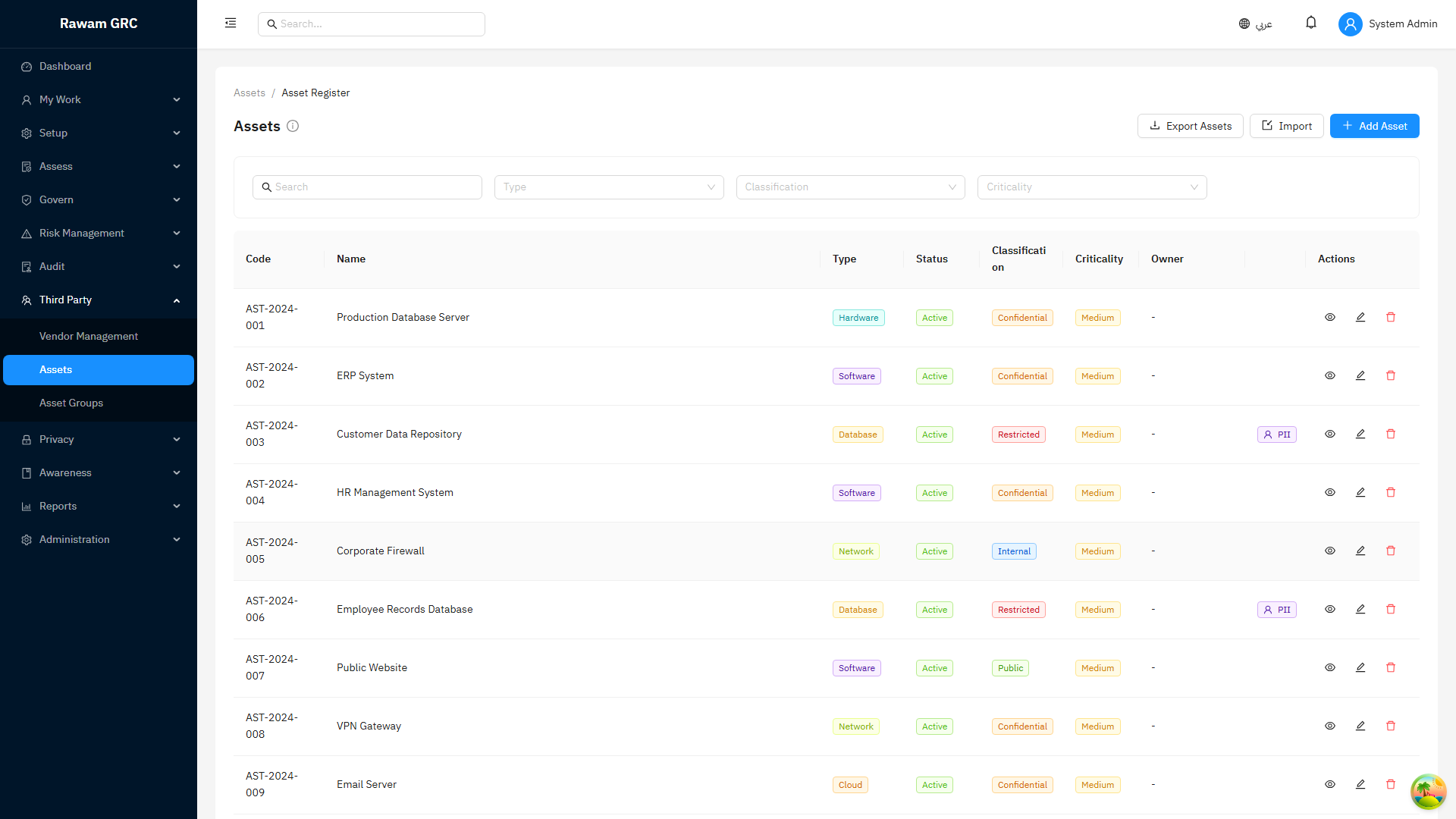
Use assets to keep business and technical ownership clear.
- Filter assets by criticality, owner, department, or status.
- Confirm critical assets have owners and review dates.
- Link risks or controls when the asset affects compliance or risk exposure.
- Update ownership when systems or business services change.
9. Track Incidents and Operational Issues
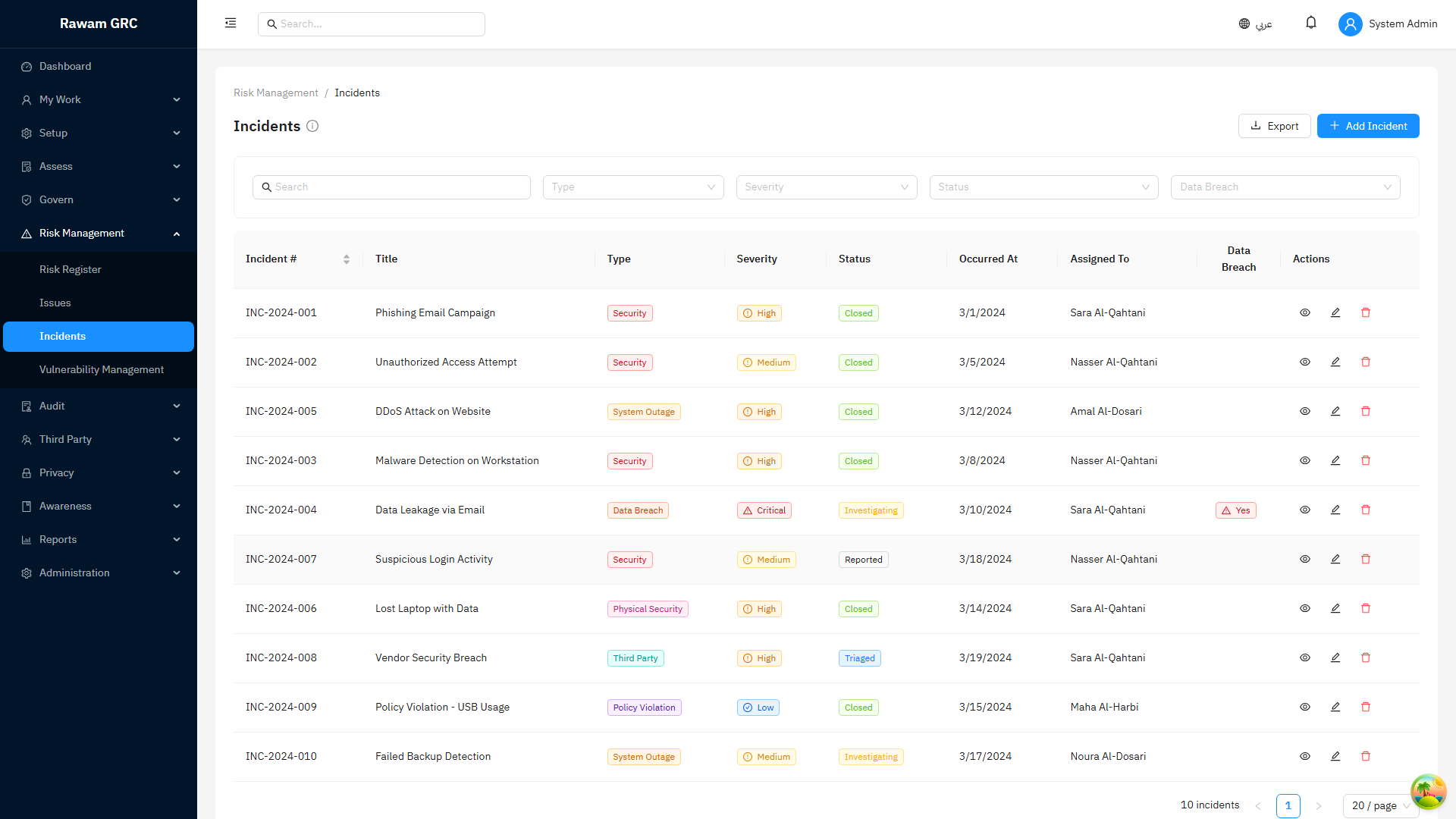
Use incidents and issues to track operational response and closure.
- Open high-severity or overdue records first.
- Confirm owner, status, due date, impact, and response notes.
- Link related risks, vendors, assets, or controls when relevant.
- Require closure evidence before marking the item resolved.
- Escalate repeated delays or critical incidents.
10. Review KPIs and Reports
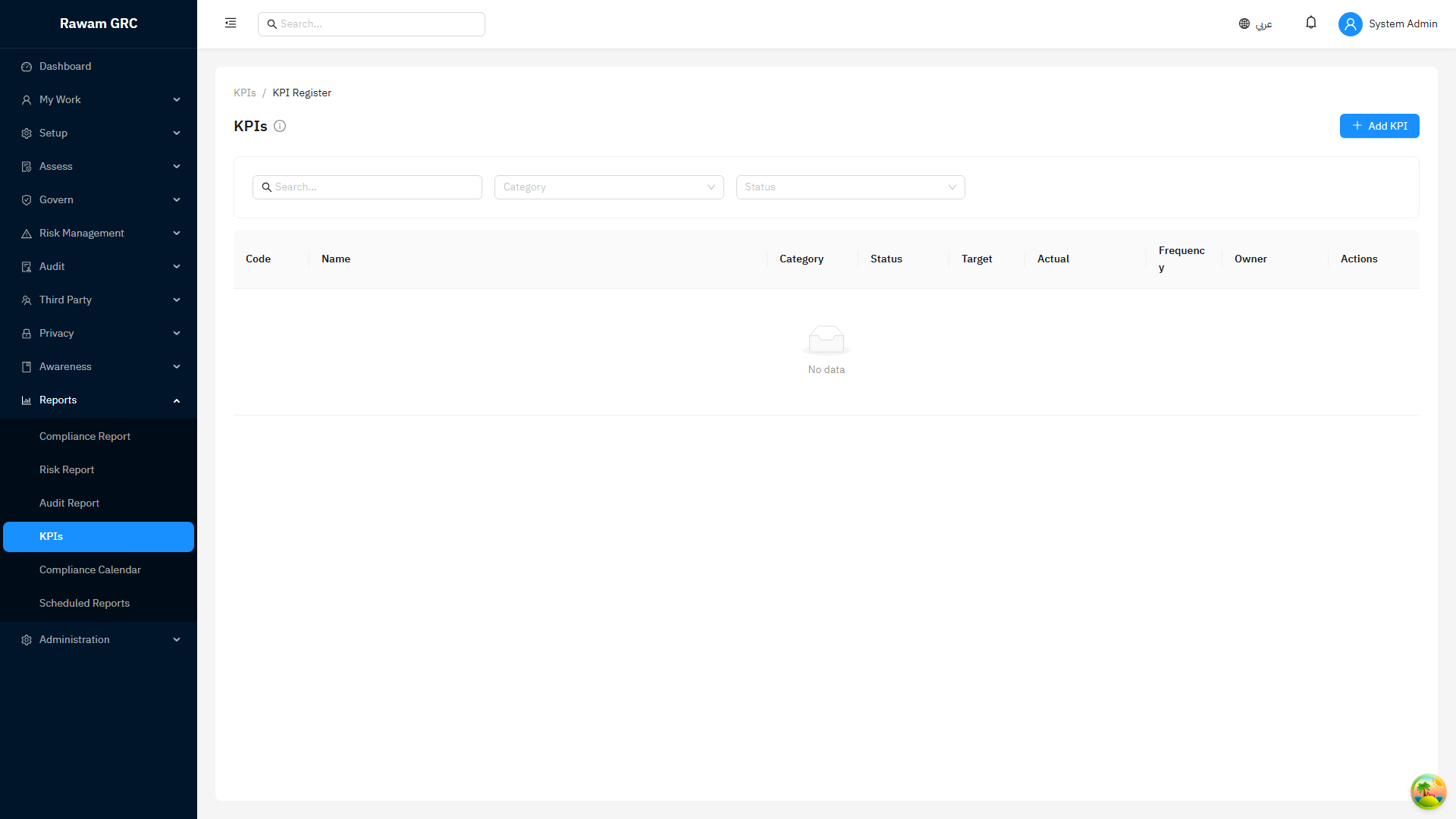
Use KPIs and reports to prepare management updates.
- Review KPI status: on track, at risk, or critical.
- Open source records for KPI values that changed significantly.
- Check whether the change is real performance movement or data quality correction.
- Export reports only after verifying filters and source data.
- Schedule reports only when the audience, owner, and purpose are clear.
11. Manage Settings and Administration
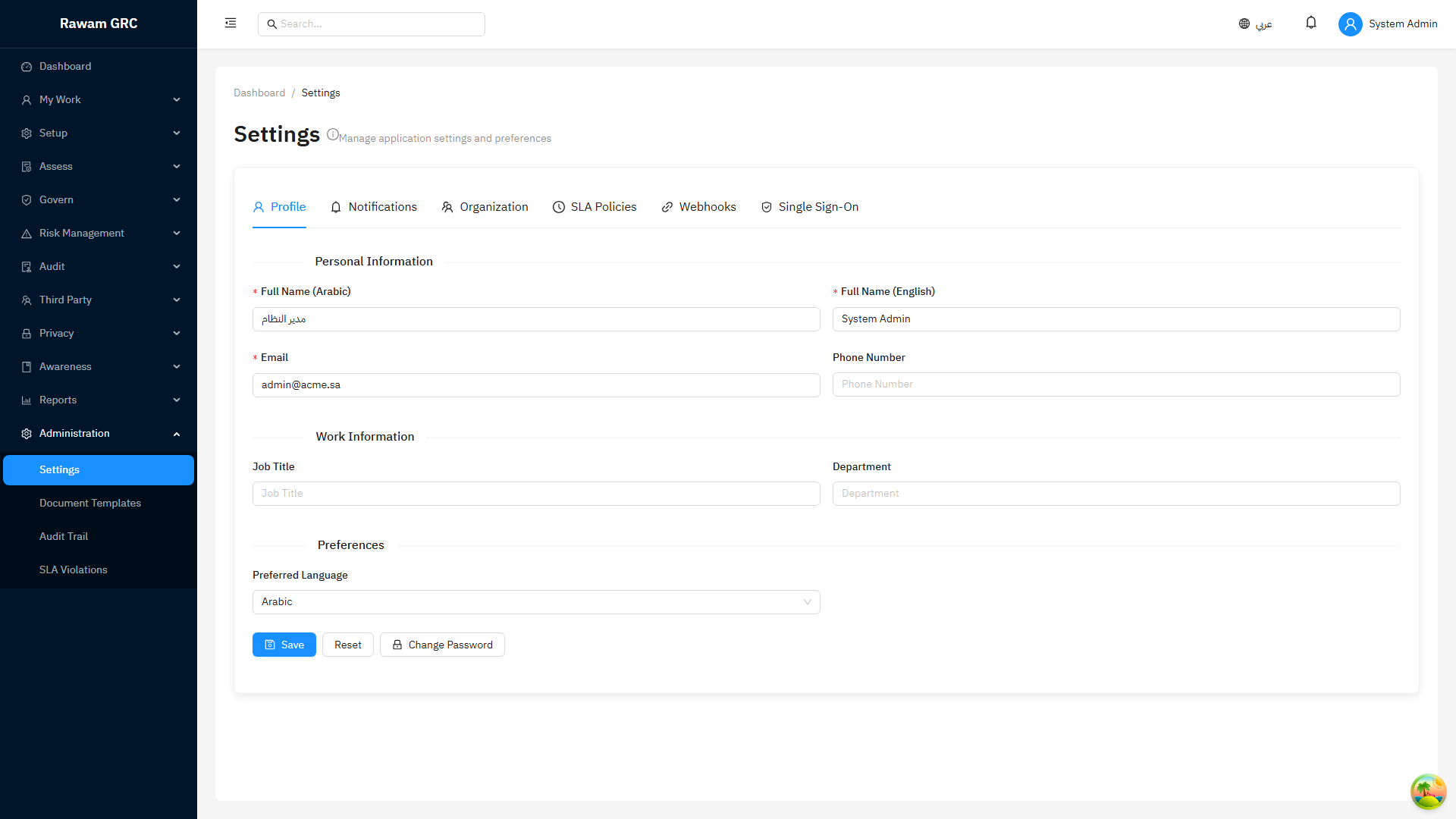
Use settings carefully because changes can affect many users.
- Review users, roles, departments, and workflow ownership.
- Apply least-privilege access.
- Avoid duplicate departments or lookup values.
- Reassign ownership before deactivating users.
- Review configuration changes during monthly admin checks.